🎯 Mục tiêu Lab
Sau khi hoàn thành lab này, bạn sẽ:
- Hiểu cách HCL tổ chức cấu hình Terraform
- Biết cách sử dụng Block – Attribute – Data Type – Function – Condition – Dependency
- Tự động:
- Sinh SSH Key
- Tạo EC2 Ubuntu
- Cài Nginx bằng
user_data - Xuất lệnh SSH & URL Web
📌 Điều kiện tiên quyết
- Đã cài:
- Terraform ≥ 1.0
- AWS CLI
- AWS credentials đã cấu hình (
~/.aws/credentials) - Region sử dụng:
ap-southeast-1(Singapore)
🧩 Phần 1: Terraform Block – Khai báo nền tảng
terraform {
  required_version = ">= 1.0.0"
  required_providers {
    aws   = { source = "hashicorp/aws", version = "~> 5.0" }
    local = { source = "hashicorp/local", version = "~> 2.0" }
    tls   = { source = "hashicorp/tls", version = "~> 4.0" }
    random = { source = "hashicorp/random", version = "~> 3.0" }
  }
}
👉 Ý nghĩa HCL:
terraform {}: block gốcrequired_providers: định nghĩa dependency giốngpackage.json- Version constraint giúp tránh lỗi môi trường
🌍 Phần 2: Provider Block – Kết nối AWS
provider "aws" {
  region = "ap-southeast-1"
}
👉 Terraform sử dụng block này để:
- Biết deploy tài nguyên ở đâu
- Giao tiếp với AWS API
🧠 Phần 3: Variable với Complex Data Type (Object)
variable "project_config" {
  type = object({
    env           = string
    instance_size = map(string)
    whitelist_ips = list(string)
  })
}
👉 Đây là HCL nâng cao:
object: gom nhiều cấu hình liên quanmap: ánh xạ env → instance typelist: danh sách IP cho SSH
🔍 Phần 4: Data Source – Lấy AMI động
data "aws_ami" "ubuntu" {
  most_recent = true
  owners = ["099720109477"]
}
👉 Không tạo tài nguyên, chỉ đọc dữ liệu
- Luôn dùng Ubuntu mới nhất
- Tránh lỗi AMI cũ
🔐 Phần 5: Resource – Tạo SSH Key tự động
1️⃣ Sinh private/public key
resource "tls_private_key" "ssh_key" {
  algorithm = "RSA"
  rsa_bits  = 4096
}
2️⃣ Upload public key lên AWS
resource "aws_key_pair" "generated_key" {
  key_name   = format("beobeo-lab-key-%s", var.project_config.env)
  public_key = tls_private_key.ssh_key.public_key_openssh
}
👉 Minh họa:
- Function:
format() - Implicit dependency: Terraform tự hiểu thứ tự
3️⃣ Lưu private key ra file
resource "local_file" "private_key_pem" {
  filename = "generated-key.pem"
}
🛡 Phần 6: Security Group – Network Layer
resource "aws_security_group" "web_sg" {
  ingress { from_port = 80 }
  ingress { from_port = 22 }
}
👉 Kiến thức HCL:
- Nested block (
ingress,egress) - Dùng variable cho whitelist IP → linh hoạt
🖥 Phần 7: EC2 Resource – Tổng hợp mọi khái niệm HCL
resource "aws_instance" "web_server" {
  depends_on = [aws_key_pair.generated_key]

  instance_type = var.project_config.env == "prod" ?
                  var.project_config.instance_size["prod"] :
                  var.project_config.instance_size["dev"]

  user_data = <<-EOF
    #!/bin/bash
    apt install -y nginx
  EOF
}
👉 Áp dụng:
- Explicit dependency:
depends_on - Condition (Ternary operator)
- Here-doc string
- Reference resource (
aws_security_group.web_sg.id)
📤 Phần 8: Output – Trả kết quả cho người dùng
output "ssh_command" {
  value = "ssh -i generated-key.pem ubuntu@${aws_instance.web_server.public_ip}"
}
output "web_url" {
  description = "Link truy cập web"
  value       = "http://${aws_instance.web_server.public_ip}"
}
👉 Output giúp:
- Dễ dùng
- Không cần tra IP thủ công
# [1] BLOCK: Terraform configuration
terraform {
  required_version = ">= 1.0.0"

  required_providers {
    aws = {
      source  = "hashicorp/aws"
      version = "~> 5.0"
    }
    local = {
      source  = "hashicorp/local"
      version = "~> 2.0"
    }
    tls = {
      source  = "hashicorp/tls"
      version = "~> 4.0"
    }
    # [FIX] Thêm random để tránh lỗi lock file nếu môi trường cũ còn lưu vết
    random = {
      source  = "hashicorp/random"
      version = "~> 3.0"
    }
  }
}

provider "aws" {
  region = "ap-southeast-1"
  # profile = "default"
}

# --- INPUT VARIABLES ---

variable "project_config" {
  description = "Cấu hình dự án (Complex Data Type)"
  # [3] DATA TYPE: Object (Struct) kết hợp Map và List
  type = object({
    env           = string
    instance_size = map(string)
    whitelist_ips = list(string)
  })

  default = {
    env = "dev"
    instance_size = {
      dev  = "t3.micro"
      prod = "t3.micro"
    }
    whitelist_ips = ["0.0.0.0/0"] # Lab thì mở hết
  }
}

# --- DATA SOURCE ---

data "aws_ami" "ubuntu" {
  most_recent = true
  owners      = ["099720109477"] # Canonical

  filter {
    name   = "name"
    values = ["ubuntu/images/hvm-ssd/ubuntu-jammy-22.04-amd64-server-*"]
  }
}

# --- RESOURCES (SSH KEY GENERATION) ---

resource "tls_private_key" "ssh_key" {
  algorithm = "RSA"
  rsa_bits  = 4096
}

resource "aws_key_pair" "generated_key" {
  # [6] FUNCTION: format()
  key_name = format("beobeo-lab-key-%s", var.project_config.env)
  # [2] ATTRIBUTE: Tham chiếu
  public_key = tls_private_key.ssh_key.public_key_openssh
}

resource "local_file" "private_key_pem" {
  content         = tls_private_key.ssh_key.private_key_pem
  filename        = "${path.module}/generated-key.pem"
  file_permission = "0400"
}

# --- RESOURCES (INFRASTRUCTURE) ---

resource "aws_security_group" "web_sg" {
  name        = "web-sg-${var.project_config.env}"
  description = "Allow HTTP and SSH"

  ingress {
    from_port   = 80
    to_port     = 80
    protocol    = "tcp"
    cidr_blocks = ["0.0.0.0/0"]
  }

  ingress {
    from_port   = 22
    to_port     = 22
    protocol    = "tcp"
    cidr_blocks = var.project_config.whitelist_ips
  }

  egress {
    from_port   = 0
    to_port     = 0
    protocol    = "-1"
    cidr_blocks = ["0.0.0.0/0"]
  }
}

resource "aws_instance" "web_server" {
  # [7] DEPENDENCY (Explicit)
  depends_on = [aws_key_pair.generated_key]

  ami = data.aws_ami.ubuntu.id

  # [4] CONDITION (Ternary Operator)
  instance_type = var.project_config.env == "prod" ? var.project_config.instance_size["prod"] : var.project_config.instance_size["dev"]

  # [7] DEPENDENCY (Implicit)
  vpc_security_group_ids = [aws_security_group.web_sg.id]
  key_name               = aws_key_pair.generated_key.key_name

  user_data = <<-EOF
              #!/bin/bash
              sudo apt-get update
              sudo apt-get install -y nginx
              echo "<h1>Hello BeoBeo Terraform Class!</h1><p>Environment: ${var.project_config.env}</p>" > /var/www/html/index.html
              sudo systemctl enable nginx
              sudo systemctl start nginx
              EOF

  tags = {
    Name = "Web-${upper(var.project_config.env)}-01"
  }
}

# --- OUTPUTS ---

output "ssh_command" {
  description = "Lệnh để SSH vào server"
  value       = "ssh -i generated-key.pem ubuntu@${aws_instance.web_server.public_ip}"
}

output "web_url" {
  description = "Link truy cập web"
  value       = "http://${aws_instance.web_server.public_ip}"
}
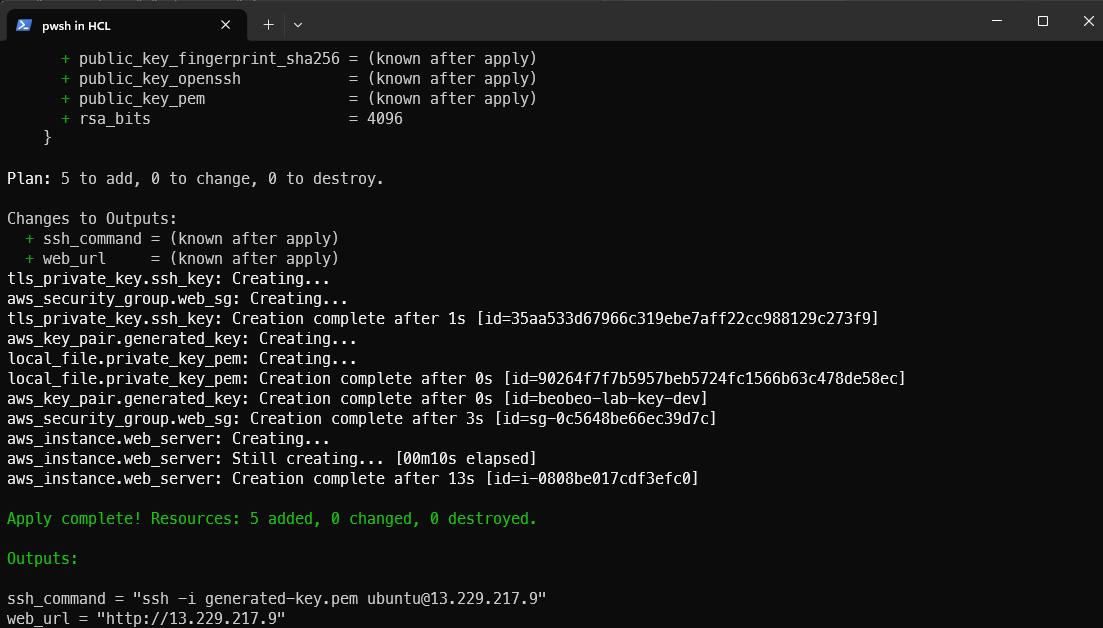
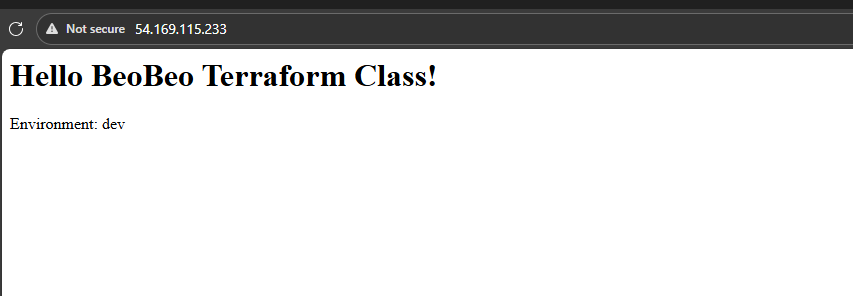
Kết quả: